We take a look at how the new HTC Sensation stacks up against LG's new Optimus Black We compare the LG Optimus Black to HTC’s Sensation. Form: LG Optimus Black - 122x64x9.2mm...
It's time for HTC's Incredible S to earn its moniker as it goes head-to-head with LG's bank balance friendly super phone, the Optimus Black As the successor to the fantastic Desire HD, the HTC Inc...
A lovely white plastic and silver metal chassis, a smooth 7-inch 1024 x 700 pixel resolution capacitive touchscreen capable of working with special Scribe pen surrounded by a generous black border...
It seems HTC has finally caved to what are likely the security demands of wireless carriers with its newest phones, and is locking down its handsets Moto-style. Latest case in point: the EVO 3D – which sports the same sort of security we found on....
HTC’s first Android Facebook phone, the HTC ChaCha, has been priced and (roughly) dated by UK retailer Carphone Warehouse. The smartphone – which has a 2.6-inch touchscreen, full QWERTY...
Tweet
This is a game that, if you’re a fan of either of the following games or series, you’re going to love the heck out of: StarFox 64 and Rogue Squadron for Gamecube. I know there’s games very similar to those two, but those are massively iconic and without a doubt they flew through your humble narrator’s mind the entire time he was playing the game we’re talking about right here right now. This is Star Battalion and it’s available now exclusively for Xperia PLAY - let’s play it!
This game is a starfighter game, one where you use your craft flying near giant bases and ships and alternating enemies and allies in missions against the enemy that will instantly bring your Rebellion against the Empire into your mind. That said, it’s got a storyline all its own and the game itself has taken this genre to a whole new level. This game takes the controls of the Xperia PLAY and puts them to a great set of uses, all of the buttons activating one function or another in a fantastic display of blasts, missiles and yes, barrel rolls.
Check out the rest of our Xperia PLAY App Review Series for more fun!
You’ll have to lock on to your opponents as they fly in 360 degrees in all directions, you smashing into them with every weapon you’ve got in an attempt to blast them into oblivion so that you’re able to fly through the dust cloud into the next dogfight. Destroy ships and destroy bits of the environment by yourself and with your ally ships that fly at your side and alternately around you using their own bionic brains.
This game is set to make you enjoy your Xperia PLAY from the moment you own it until the moment you cry because they’ve released some second edition of the handset – it’s a classic from start to finish. Play the heck out of it and use it to train your fingers for use of the controls in every other game you play on the platform. It’s diverse and you’re going to have a rock and roll party of a good time.
Also check out our full review of the Sony Ericsson Xperia PLAY from Verizon so you know what we’re dealing with here – ultra fun in a slide out bag o games!
)
A lovely white plastic and silver metal chassis, a smooth 7-inch 1024 x 700 pixel resolution capacitive touchscreen capable of working with special Scribe pen surrounded by a generous black border, cameras on both front and back, HTC’s newest version of Sense UI, a 1.5 GHz single-core processor, capable of accepting microSD card, working with Bluetooth 3.0, DLNA streaming, Wifi 802.11 b.g.n, micro-USB (of the 12-pin micro-USB 2.0 variety,) and GPS. This is the HTC Flyer tablet as carried by Best Buy in the USA, containing 16GB of internal storage, 1GB of RAM, and a partridge in a pear tree. See our full review and get your hands on the giant handset – or one tiny tablet, whichever you prefer, of course!
Wait a second, giant handset? Isn’t this a tablet? Sure, it’s a tablet, but what you’re going to feel when you’ve got your hands on this device is that it’s a size that’s between a tablet and a smartphone. It’s perfect for doing work and playing games – not made for every day use. It’s not a giant tablet made with power in mind, it’s not a tiny smartphone with all activities in mind. This is a device who’s speciality is whatever you aim to use it for. It’s not a Jack of all Trades and is therefor going to access your wants in a magically excellent way. It fits in my pocket, you can work with the compatible Scribe pen for taking notes, and it’s a gorgeous device. The following review describes a device that you absolutely will not regret purchasing, but one you should consider long and hard whether you actually want or not.
Hands-On and Unboxing of the HTC Flyer [Best Buy]
Hardware
This device is 7.7 x 4.8 x 0.52 inches (195.4 x 122 x 13.2 mm) and weighs in at 420 grams (14.82oz). It’s certainly not the lightest or thinnest device in the library of devices that are being released or have been released thus far, but it holds its own. It doesn’t look or feel like it’s got any weight or size because of requirement alone. HTC is skilled in their execution of industrial design, and this is an excellent little vehicle for hip customers for certain.
You can pop a headphone jack in the top, you can plug the special USB in the bottom to power or transfer data, you can watch a movie and listen in with the speakers blasting out the back, and the 1.5GHz single-core Qualcomm MSM8255 processor wont leave the average user wanting for speed and guts. If you’re an HTC sort of person, that is if you enjoy your EVO, your ThunderBolt, any number of HTC devices that have been released in the past year that all look and feel relatively similar, you’ll be at home here.
This is a modified version of HTC’s popular model handset, made larger and modified to work just as naturally in both portrait and landscape mode. When you turn the device on, you’ll notice that the HTC logo is at portrait-top of the device. When you’d like to film a video of yourself or video chat from the front of the device, you’ll find that holding it in landscape mode is best as it’s located at landscape top and center. You’ll find that taking photos and video with this device is not awkward as it is with larger tablets – in fact it’s downright enjoyable and you’ll catch yourself reaching for the Flyer just to record your daily activities, just to try it out.
The black non-display border on the front is wide enough that you’ll not accidentally press your thumb and fingers to the screen when you’re holding it in any number of holding positions. The entire front is covered by everyone’s favorite super-tough Gorilla Glass. The back panel, (the piece with the camera lens,) pops off easily (once you realize where to press) to reveal the location where you can add your very own micro-SD card. Of course we entered the 32GB card packed with media for testing in there at first, and it’s really working fine as a box of chocolates to be sure.
Scribe Pen
The Best Buy version of this tablet does not come standard with the Scribe Pen. Instead you’ve got to purchase it separately for $79, and yes, I recommend doing so as soon as you purchase the tablet. Without the pen you’ll find yourself getting annoyed that that amazing little green button sitting to the right of the rest of the standard light-up Android buttons is useless. Should you get the pen, this button pops up a whole toolset that works with the pen for drawing, circling, writing, and more on the screen for fun and for productivity.
The pen itself is slightly larger than a crayon or a golf pencil, having two buttons along the side and being powered by a single AAAA battery, a single Energizer coming with the pen. The pen tip is one that depresses when pushed against a surface, the activated surface working excellent and quite responsively when touched with the pen. This device uses N-Trig’s active digitizer technology that slides perfectly along the Flyers glass face – it’s as nice a pen for a digital interface yours truly has seen.
On the other hand, the difference between when you’re able to use the pen and when you’ve got to use your finger to press a button is confusing. If you use the pen’s ability to circle anything on any screen, you’ve got to use your finger next to save the screenshot you’ve just taken. I found myself constantly baffled at whether I should be using finger or pen at any given time and became frustrated more than once, eventually putting the pen aside when using the device for web browsing and email checking.
Software
HTC Sense has a few new features, the most prominent of which is the lockscreen that allows you to move icons to a wheel that’ll bring you directly to the icon’s app. Other than that, it’s the Sense you know and love. There are 8 homescreens, each of them connected to the next in a real carousel, turning in a lovely display if you’ve got the device in landscape mode. Each of these screens is active with a widget provided by HTC – small Weather, People + Google Search, Watch (movies you can download via HTC’s Video store – a feature you can use even if you don’t want to watch full videos by selecting your video of choice and watching a full trailer – fun!), My Shelf (containing books from Kobo, run by Adobe), big Weather, Mail, and Friend Stream.
Another lovely addition in this newest version of Sense is the dock containing Notes, Reader, and Watch. You’re able to change these out if you want, but more than likely you’ll be wanting to keep at least Notes as it’s the place you’ll be able to use your pen to write to your heart’s content. There’s Sense’s painting pallet button there too, linking you to “Personalize,” HTC’s list of items including display items like Scene, Skin, Wallpaper, and Lock Screen, add items to home features like widgets, apps, shortcuts, and folders, and personalized sounds for notifications and alarms.
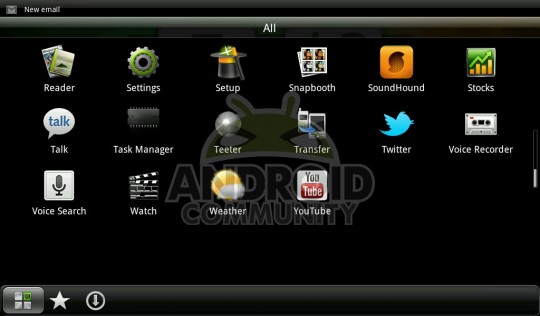
In your apps folder you’ll find 52 icons. Most of them are apps, a few are shortcuts to setting sand the like, and less than 10 are specifically added by HTC. There’s the regular Google suspects such as Calendar, Google Search, and Internet Browser, then some apps specifically situated for this device. Whether or not some these apps were decided upon by HTC or Google is up for debate, others are pretty obvious : Amazon MP3, Facebook, HTC Hub, HTC Likes, Kid Mode, Notes, PDF Viewer, Polaris Office, Press Reader, SoundHound, Twitter, and Teeter.
The fact that Teeter is the only “game” app in the whole device should let you know whether or not HTC meant for this device to be a gamer-centric experience. Teeter is a game where your device appears to hold a steel ball which you’ve got to tip left and right, forward and back to get through mazes successfully. Should you be purchasing this device for business, I’d recommend you stick with this game only.
HTC Notes
Which app do I think people who’ve also got the Scribe Pen will be using the most? Notes. You can open up a note, write or draw, take a photo and add it in, record video or audio, add it in, save it for later. This is the media collector app on a conveniently sized device that should have existed for years now. This is what computers are for in the traveling business person world. It’s not perfect, but it sure is nice. The only reason I would not recommend this device to my aunt, (looking for a device to help her when looking for new houses to purchase,) is that she’d have to get used to this app in order to make it worth the money. Too difficult for her I think.
On the other hand yet again, this system works in collaboration with Evernote, an app which everyone in the world knows to be a superior system that’ll keep you organized everywhere from every single device you’ve got. The green elephant has your back, and now you’ve got a way to collect everything on one device even easier than you’ve been able in the past. HTC, this was a good, nay, awesome decision.
HTC Reader
This Reader app working with Kobo for book purchases and Adobe for its engine is well put together and works just fine. I wont go too far into the specifics because there really aren’t that many. Reading apps for e-books should be simple, and this one certainly is. What it’s good for here on the HTC Flyer is working with the pen. With the pen you’ll be able to not only take notes, circle words, and generally write all over the book, you’ll be able to keep those notes in the book as long as you like.
Furthermore, HTC Reader automatically slots in a bookmark for you when you’re done reading for the day. How convenient! Zoodles
This is not an app that’s on the Flyer only, but it’s certainly another fantastic choice to be loaded out of the box. HTC knows good and well that this device isn’t going into the hands of many teenagers. Instead it’ll go into the paws of an age group that’s got a good chance at having some connection to some little monsters, very probably their own kids. Zoodles is an app that opens up and offers these kids a variety of activities, videos, and fun options in a way that makes them feel like they’re really using the tablet, an activity that I know from having my own little nieces and nephews nearby my tablets to be an enjoyable experience indeed.
Zoodles appears to be quite at home here on the HTC Flyer and will definitely be a selling point in the store when the clerks are showing off the tablet to parents. Should they realize they can get the same app on other devices? Sure, but it looks so nice here!
Camera
Let’s talk about the camera here, letting for the most part the actual photos and video do the talking. The cameras on the front and back of this device certainly do not appear to be attempting to help you win any photo contests, but they’re OK for how they’re rated. The 1.3-megapixel camera on the front is as dreary as every other camera at that resolution and should be use strictly for video chat. The 5-megapixel camera on the back takes decent photos for your notes or Facebook, but it’s not the great superstar size-8 we’ve been seeing as a standard placement on recent handsets. Also there’s no flash.
Front-Facing 1.3-megapixel Photo
Front-Facing Video
Back-Facing 5-megapixel Photo
Back-Facing 1280 x 720 [720p] Video
Performance
This device is running Android 2.3.3 at launch here with HTC Sense version 2.1 for Tablet. You’ll see below some benchmarks testing various bits of the tablet, each of them showing that if you’re purchasing this device to try to beat all the other race cars, you’re in for a surprise.
Linpack
Smartbench 2011
Quadrant Advanced
AnTutu
The numbers should show you that you’re right in the fine range for daily activities, on the other hand, just so long as you’re not thinking of playing high-powered games and playing HD video all day long. Unless you want to watch Speed Racer, which has worked just fine for us thus far.
Battery
This battery appears very much to be one bad mother. We’ve been using it for several days now off and on, heavy occasionally but lightly for the most part, and it’s still going strong out of the box. Inside, you’ll be happy to know, there’s a 4,000 mAh non-user-replaceable battery. HTC reckons that this setup ought to see up to four hours of video playback or between 820 and 1470 hours of standby.
This battery will last you AT LEAST a full day with heavy use. That’s all ya’v gatta knah. Wrap-Up
Let’s talk about prices here. In the USA you’ll be picking this lovely lady up at Best Buy for $499.99. You’ll have to purchase the Scribe Pen separately for $79.99 – harsh! In the UK this device is going to run you £599.99 for the 32GB 3G version, while the 16GB WiFi-only model comes in at £479.99 (that’s the one we’ve got here.) The 3G version hasn’t yet revealed its head for pricing, but we’re guessing an extra $100 woudn’t be too far out of line for when it’s released on Sprint as the HTC EVO View.
Is it worth that kind of bank? What are you deciding on? Are you deciding between this device and another Android tablet? Your only other choice for this size tablet is the Galaxy Tab original, and that one really isn’t getting such great feedback in its Wifi-only form. What else is this device competing with? There’s no other tablet out there worth its salt with a pen to go with it – but how about a similar size? The Galaxy Tab 8.9, if it’s anywhere near as awesome as its 10.1-inch counterpart, will blast forth from this earth like an alien spaceship into orbit. It’s lighter, thinner, and will be running Honeycomb at launch with a dual-core 1Ghz target=”_blank”>processor. Supposing it’s also got as good a camera and runs as nicely as its partner, no other tablet has much of a chance.
On the other hand, here’s HTC with their magnificent HTC Sense and a lovely Scribe pen. Is it enough to convince us that it’s the tablet to have this season for everyone? No, not for everyone, but again, if you’ve got the specific desire to take notes on your tablet with the pen, this is certainly the best contender thus far. It’s definitely pretty, it’s certainly nice in its size and chassis, and the software is totally solid.
If you’ve been keeping up with Android news and release dates, you would know that the release of the Sony Xperia Play for Verizon is fast approaching us (May 26th to be exact). While attending Google I/O last week I was actually one of the lucky few who walked away with an Xperia Play. Since then, I’ve been getting loads of messages asking if the phone is worthy of a purchase and/or upgrade. After messing around with the device for about a week now, I am excited to finally bring you my review on Sony’s first gaming smartphone.
I have to say, I haven’t really heard too much buzz about the device other than the fabled PSP Phone that was rumored since before there was an actual PSP. But maybe it has something to do with the fact that the handset is not yet available in the U.S., or possibly because most of the uber-techie Android snobs already have their sights locked on some of the many dual-core options coming out later this year. I have to admit, I was on that boat as well. Don’t let the fact that the Xperia Play comes with a single-core processor dissuade you. I found it snappy and more than capable of handling all the 3D games from the Android Market I could throw at it. Not only that, in the UK version I’m reviewing, Sony’s Timescape UI thrown on top does nothing but enhance the user experience (note- the Verizon version delivers a stock, plain, vanilla Android Google experience). One thing you should know about me, I’ve always preferred the super, chunky monkey, rocky road, chocolate fudge brownie UI’s like that of HTC’s Sense with all the polish and added functionality that comes along with it.
Alright, before we jump into the video, lets start by listing off some quick specs of the phone for those that are curious (and for others to scoff at). It comes pretty much standard with what you expect from a mid-level-ish handset these days. A 4-inch, 800×480 Super LCD display is found on top along with a VGA front facing camera. On the back you have a 5MP camera that focuses and adjusts exposure during the LED flash and delivers perfectly exposed and clear photo snapping. Was very impressed.
Just underneath the handset’s “L and R” gaming buttons, there are 2 stereo speakers tucked away out of sight. Don’t forget the noise cancelling microphone on the back that lets you know Sony Ericsson didn’t cut any corners when it came to features on the device . Inside we find a 1GHz, 2nd generation Snapdragon processor that seems to be aging rather gracefully and a 1500mAh battery that delivers easily 9 hours+ of juice even with light gaming.
On the software side, we see that the handset is running the latest version of Android (for smartphones) 2.3.2 Gingerbread. Sony has also gone on the record as saying their Xperia line of phones will come with easily unlocked bootloaders and even provided links on their website for those that like to tinker around with that kind of stuff. I should also note that although generous of Sony Ericsson to include some free games pre-installed on the device, they CANNOT be uninstalled. This results in far less internal memory on the device for your own apps and games. Couple this with Verizon’s own bloatware and we’re talking maybe about 226MB of internal storage in the end making rooting of the device almost a necessity.
So, for the main event, lets just jump straight into my video review to see how I really felt about the world’s first Android gaming smartphone. Will it be another mid-level snoozer? Or will Sony’s latest offering turn out to be something truly unique in a world of smartphones not suitable for the gaming enthusiast?
Tweet
It’s that time again, time to get a completely different perspective than ours from our sister site SlashGear on a device of some measure! This is the Galaxy Tab 10.1 Google I/O limited edition, a device that you know we had a look at in full review fashion back a week ago. Big hits! Then head below to see what Vince thinks of the same situation. Note his unique photo style especially and compare the review to ours.
I’ll be brief here because you know you’ve got our review to guide you as well as a link right [here] to Vince’s full review. What he notes is that the display is brilliant with many viewing angles, it’s comparable to the iPad 2 for thinness and lightness, and that the delay in Samsung’s original announcement of March of this year for a tablet line is quite obviously due to Apple’s newest iteration of the tablet. This tablet, Vince notes, is the thinnest and lightest of any Android tablet of comparable power, thinner and lighter than the XOOM (13mm/730g), G-Slate (12.8mm/630g) and Eee Pad Transformer (13mm/680g).
Vince’s Quadrant came in with a total of 2107 with a CPU result of 6367, he notes that getting stuck with Kies for sideloading apps makes him envious of similar tablets getting straight up USB support, and the cameras are definitely not pro-quality, ending up taking shots much closer to something you’d be alright with uploading to Facebook. Battery life is fantastic he notes, the 16GB price at $499 and 32GB model at $599 are reasonable but may have trouble competing with the $400 Transformer.
Check out the rest of Vince’s review which includes such gems as ” Samsung has made a tablet that feels like a tablet should: science-fiction thin, quality display and lightweight” over on SlashGear and remember that
Also check out the following video
Exclusive unboxing ceromony by Vic Gundotra, Google’s Sr. VP of Engineering:
Tweet
Our buddy Chris Davies has done a review of the HTC Flyer, that cute little 7-inch HTC handheld tablet, over on our sister site SlashGear. What you’re about to view is a bit of a re-write review based on what he’s told us about the device thus far. This is the first tablet we’ve seen from HTC since 2008, the last being a Windows device by the name of HTC Shift. So how is the Flyer? We got a tiny glimpse of this piece of candy back at Mobile World Congress 2011 and a much longer look at its USA cousin via Sprint at CTIA 2011 – that one was black, this one’s white, that one has the stylus sold separately while the Flyer has one that comes with. Will this Euro HTC superstar add up?
Hardware
The Flyer’s HTC pedigree is obvious, looking somewhat like an oversized Desire S with its unibody-style aluminum and white plastic insert-sections. It’s chassis measures 7.7 x 4.8 x 0.52 inches, a little longer and thicker than the original Samsung Galaxy Tab. Its also heavier because of the metal, but that makes this tab feel more sturdy than the Galaxy.
The 7″ size makes it comfortable to hold in one hand, and the screen bezel is wide enough that we could hold the Flyer like a book without tapping the screen on accident. The only physical controls are the power/lock button on the top edge, with an integrated status light, and a volume rocker on the right edge. There is a 3.5mm headphone jack on the top, and a microUSB port on the bottom.
Going to the back, there is a 5-megapixel autofocus camera (no LED flash), and stereo speakers. Pulling off the lower plastic section reveals the SIM slot for the triband HSPA/WCDMA (and quadband GSM/EDGE) modem in our 3G review unit, and the microSD card slot. There is 32GB internal storage, though the WiFi-only Flyer has half that amount. The Flyer also has WiFi b/g/n, Bluetooth 3.0, GPS, an ambient light sensor, g-sensor and digital compass, as well as a front-facing 1.3-megapixel camera for video calls.
Unboxing and First Impressions
HTC has opted for a single-core, Qualcomm’s MSM8255 1.5GHz chip in the Flyer, paired with 1GB of RAM. The Flyer can’t be used as a phone, and has 3G radio only for data connectivity. Similar to the Galaxy Tab, the Flyer’s screen is a 7 inch, 1024 x 700 capacitive touchscreen. The LCD panel is bright and clear with decent colors. The rotating buttons that we like so much on the Incredible 2 are missing, but there is a second set of touch-sensitive keys. If you hold the tablet in landscape orientation and you get backlit home, menu, back and “stylus” buttons underneath the short edge of the display; rotate it into landscape orientation and you get the same buttons underneath the long edge. Unfortunately, we sometimes wanted the alternate set of keys, so a choice would be nice.
Ok, so the stylus. HTC offers a “Magic Pen” with the tab for text entry, annotation and sketching. Using N-Trig’s active digitizer technology, that allows for far greater accuracy (as well as pressure sensitivity) when writing on the screen. The tab also automatically shuts off the regular, multitouch capacitive touch panel when the pen’s nib is near, so that you can rest your palm on the display without accidentally triggering anything. In Europe, the Magic Pen will be bundled with the Flyer; in the US, it will be a roughly $80 accessory. Since we are all so used to, and love, our touchscreens, the thought of a stylus seems like going backward. But wait. HTC has done a good job of adding digital pen functionality to Android, and the Flyer’s pen glides smoothly across the Gorilla Glass on the display. We’ll go into more stylus details in the software section.
There is no physical place to put the stylus, however, unless you use the leather slip case with magnetic flap with a loop on the back for it. This is bundled in the UK edition, but you can bet we’ll have to pay for it here in the US. We weren’t crazy about the white finish – although matching the Flyer’s color scheme – it seems to invite scuffs and blemishes; and leaving the pen on the outside and unprotected feels risky. The case also adds bulk, so it can be a pain if you want to fit the tab in your pocket. I would lose the stylus, there is no question about it.
Software and Performance
HTC has opted for Android 2.3 Gingerbread, the latest version intended for smartphones. They’ve added HTC Sense with some significant modifications to the familiar UI to take into consideration the tablet form factor.
Unlike HTC phones, the Android homescreen now works in both portrait and landscape orientation. Both get a carousel-style interface, with endless rotation; flick the homescreen fast, and the perspective pulls back to show the eight panes spinning. A pinch-zoom gesture shows all eight thumbnailed. It’s slick and swift, the 1.5GHz processor showing its grunt. Pull down the notification bar and there are shortcuts to the last ten apps used as well as settings shortcuts and alerts; in portrait orientation the latter are on different tabs, while in landscape they’re all visible at once.
Along the bottom of the display there’s the app menu button, then shortcuts for HTC’s new Notes app, HTC Reader and HTC Watch, which we’ll cover separately later. The usual Customize button is also included, which allows you to change the wallpaper, add icons, shortcuts and widgets – both the standard Google fare and HTC’s own – and, for the first time, tweak the lock-screen. That, as we saw on the HTC Sensation, can now show the weather along with four app shortcuts – user assignable, of course. To unlock the Flyer normally, you drag up the large ring at the bottom of the screen; to instantly unlock and load an app, you drag that icon down to the ring. It works well, though we did spot some glitchiness in the animation before the apps loaded.
The usual HTC array of software is preloaded, so you get FriendStream with Facebook and Twitter feeds, the Media Control app for handling DLNA streaming, and the heavily-animated Weather app complete with homescreen widget. There’s also Amazon’s MP3 store app, HTC Hub for wallpaper, ringtone and other downloads, HTC Likes with suggestions, Locations, the Teeter game, a Task Manager app and WiFi Hotspot, for sharing the 3G connection with up to eight WiFi-tethered clients.
Some of the standard Android software comes into its own on the Flyer. The Car Panel, which offers chunky, finger-friendly shortcuts to navigation and multimedia for use while driving is particularly suited to the tablet’s 7-inch display. HTC also throws in Dock Mode, which shows weather, recent FriendStream activity and some app shortcuts (plus has a backlight dim button so that you can use the Flyer as a bedside clock). It can be set to automatically load when you drop the slate in the (optional) dock – which we didn’t have to review – as well as optionally turn on WiFi Hotspot sharing as well.
In addition to the standard camera and camcorder apps, there’s Snapbooth, a somewhat gimmicky app that uses the front-facing camera to take vanity shots that can be mangled with various special effects. It’s good for a few minutes fun, at least. HTC’s online Sense suite also gets an outing, offering remote access, tracking and locking of the Flyer. Unfortunately, you can only have a Sense account active on one HTC device at a time – signing in on the Flyer prompted us to unlike the account from the HTC phone it was currently being used with. Considering the Flyer lacks phone functionality on its own, that means the HTC-faithful will have to pick whether they want to use their Sense account with the tablet or their smartphone, rather than having it on both. HTC Flyer Highlights
Most of the time, HTC Sense means that the absence of Honeycomb isn’t felt. But that’s not always the case. Like Samsung did on the Galaxy Tab, HTC has reworked its Mail and Calendar apps to suit the greater screen real-estate on offer, with a two-column email view when the Flyer is held in landscape orientation, and various day, week, month and year views in the calendar. Both support multiple accounts and are far more usable than their phone cousins. The gallery, too, uses the same two-column layout, with albums on the left and previews – with sharing buttons – on the right. Similarly, the browser has a tab preview bar along the top, showing live thumbnails of all your open pages.
Unfortunately, you don’t get Google’s own tablet-version of Gmail, instead you have the regular smartphone app. That’s fine on a phone, but is stretched and wasteful with space on the Flyer’s 1024 x 600 panel. Similarly Google Talk is the basic phone version. 7-inch displays are often ideally-scaled to type on with both thumbs, and the Flyer is no different. HTC’s custom keyboard doesn’t stretch to a dedicated number row, but does have navigation keys, sensible auto-predictions like @ and .com in email text boxes, and simple access to Android’s voice recognition. The auto-suggestions are also accurate, with prompted words popping up with no lag or delay.
Performance overall was mixed, depending on quite how much we stressed the Flyer with multiple-running apps. In Quadrant Standard, the tablet scored 1817, while in Quadrant Advanced it managed 2166. Linpack Pro came in at 55.009 MFLOPS. That is similar to what we’ve seen from Tegra 2 based Honeycomb tablets.
Magic Pen
Say stylus and most people immediately think of the fiddly toothpick that came with Windows Mobile phones, or the old Palm Pilots. The Flyer has more in common with Windows tablets, though again, don’t let that put you off. Basically, rather than a resistive touchscreen that simply responds to pressure, or a capacitive stylus that pretends to be a blunt fingertip so that the screens used by the iPad, XOOM and other recent slates are tricked into recognizing them, the Flyer uses a special battery powered “Magic Pen” that communicates with a second layer sandwiched with the regular, finger-friendly touchscreen. That second layer knows not only where the pen nib is, but also how hard you’re pressing: that way, lines on-screen are thin when you press lightly, or thick when you press harder.
The pen matches the Flyer’s brushed aluminum, and has a pair of buttons on its side. One puts the stylus into highlighter mode, the other text selection. It runs on an AAAA battery – HTC reckons you should get a few months use out of it. Places where the pen can be used are flagged up by the stylus button turning green; tap that, and a radial menu of pens, tools and colors pops up in the lower left-hand corner of the screen.
In most places, the pen is used to grab screenshots or “Scribbles”, triggered by tapping the pen once on the display. The resulting image can be doodled on and annotated and then instantly shared – using the normal Android options – or pasted into a new Notes document (more on that later).
It all works, but it’s not perfect. While the Flyer uses a similar active digitizer to what you’d find in a Windows 7 tablet PC, it doesn’t feel as accurate. That usually means making your handwriting slightly larger, which is frustrating on a 7-inch display. Meanwhile, although HTC claim a couple hundred levels of pressure sensitivity, there’s little visible difference between the two extremes. There’s also no handwriting recognition, and you can’t handwrite emails or jot into text-entry boxes.
There is some confusion between finger-touch and pen-touch, however. There are times when you want to use the stylus, and you can’t. So there is a lot of flipping back and forth between finger and stylus, and taking screen shots when you wanted to open a menu.
HTC Notes
Notes is where the Flyer’s Magic Pen comes into its own, and is arguably the center-point of the whole tablet. As we said, HTC took it on itself to add active stylus support to Android, and Notes is where that energy pays off. On the face of it, it looks like any other memo app: a place for a title then room for notes. However, on the Flyer those notes can either be thumbed in using the on-screen keyboard, or written in using the Magic Pen. The same radial menu of pen types, colors and other tools – offering highlighters, pencils, felt-tips and more – pops up, and you can sketch or scribble away to your heart’s content.
There’s also audio recording, which is indexed according to your note-taking. As you scribble, the Flyer automatically creates bookmarks through the recording that match text with audio: you can either see a thumbnail of the relevant note as the audio plays back, or skip to the relevant section of the audio by tapping on the note. It works, but it lacks granularity: a Livescribe pen, for instance, goes directly to the point of the audio recording, while the Flyer is a little less aggressive with its timestamping. Finally, there’s a shortcut to the camera so that you can shoot an image, have it instantly pasted into a new note, and then annotate it as you see fit.
HTC has also partnered with Evernote, which is a huge plus. You can synchronize your notes between all your devices using the service.
HTC Reader
You can of course load your favorite eReader app from the Android Market. HTC,also includes its Reader app, offering a variety of titles – both free public domain ebooks and newer, paid ones – for download direct to the slate.
In Reader, you also get the opportunity to use the Magic Pen, you can annotate and sketch either keeping neatly to the margins or scrawling all over the place, as well as highlighting passages. Reader automatically slots in a bookmark on any page you write on, so you can find your notes later.
HTC Watch
HTC Watch is the company’s attempt to make money from the multimedia uses of the tablet. Basically a movie and TV episode store, it offers both rentals and purchases – depending on title – with prices ranging from £7.99 to £9.99 to buy 720p movies in the UK or £2.49 to £3.49 to rent them. TV episodes come in at £1.49. Previews can be streamed over 3G or WiFi connections – there’s about 5-10 seconds of buffering before they play – but purchases can only be downloaded over WiFi. You can only watch your purchases on an HTC device, though, there is no way to transfer it elsewhere. It will be interesting to see what happens with this in the US.
OnLive
Streaming gaming service OnLive is currently only available in the US, and since this was a UK Flyer, we couldn’t test it. When the US version of the tablet goes on sale, it will offer the chance to play full games – the sort you’d normally need a beefy PC or a proper console – on your slate while on the move. We’ll revisit OnLive on the Flyer when the service is operational.
Camera and Multimedia
The Flyer’s main camera claims to be 5-megapixels, but some of them seem to be missing. Camera performance is plain disappointing, falling well short of what HTC’s current crop of 5-megapixel smartphones can manage. Stills are fuzzy, lack definition and have uninspiring, muted colors, while video is somehow even worse. HTC claims the Flyer is shooting 720p HD, but as you can see in our sample clip below it hardly looks that way.
The upside is that close-ups of text – such as grabbing a snapshot of a magazine article – come out reasonably well; that’s handy when you then import that shot into Notes, and sync it over to Evernote for OCR.
Media playback is another mixed bag. HTC says the Flyer will work with AAC, AMR, OGG, M4A, MID, MP3, WAV and WMA audio files along with 3GP, 3G2, MP3, WMV, AVI and Xvid video files, up to 720p, and indeed we had no problems with those. Trying more ambitious files, however, and the Flyer’s processor began to struggle. The stereo speakers lack voice, sounding insipid and reedy; better to plug in headphones or use an A2DP pair.
The Flyer lacks a dedicated HDMI output. However, like the Samsung Galaxy S II, its USB port apparently supports MHL. We were unable to test this, however.
Battery
The Flyer’s 4,000 mAh battery is non-user-replaceable, and HTC says users should see up to four hours of video playback or between 820 and 1470 hours of standby.
In practice, we found that with a mixture of push email turned on, various social network apps updating, and a fair amount of GPS mapping, browsing, music and video playback and some camera use, the Flyer made it comfortably through to the end of the day. With lighter, more sporadic use – as is perhaps common for tablets – we would probably see it run for a couple of days on a single charge. There are some sensible power management options, including the ability to turn off email checks overnight when you’re unlikely to need the very latest messages.
Wrap-Up
The Flyer has this going for it: It does not try to be an iPad clone. The Magic Pen could use some improvements, but it is a useful tool, and using it for notes is very handy. Pairing the notes function with Evernote is also a great idea. HTC has opened the API of the Pen to third-party developers, so we hope to see more functionality coming from that front.
HTC needs to be clear that dual finger and pen interfaces are integral into its vision of tablets. The UK prices are £599.99 for the 32GB version, while the 16GB WiFi-only model comes in at £479.99 – users will want to know that HTC is sticking with the stylus concept. The Flyer has a lot of potential, and is a quality piece of equipment. It’s worth giving a try if you want something different in a tablet, with added functionality that comes with the Magic Pen.
We’re anxiously awaiting our chance to take a peek at the US version soon – pens ahoy!
Tweet
After being thoroughly unimpressed with sleek and sexy DROID Charge last week, and knowing that the Venue was next on my device-review checklist, I was prepared for yet more disappointment. Let’s face it – Dell has been the butt of quality control, technical support, and advertising (Dude! you’re…) jokes for years now. Whether or not it has at all been deserved is another matter entirely – after all, Dell is a hugely successful company (I happen to be writing this review on a Dell netbook, in fact).
The Venue, then, is a device I went in having some doubts about. After all, Dell’s first Android phone, the Streak 5, shipped with Android 1.6, and generally didn’t review all that well. It didn’t sell too well, either – in fact, I’d say Dell seems content to let their Android products go by almost completely unnoticed by the general public. Unfortunately, the same was true for the Venue when it was released in the US back in early March.
We first saw the Venue last year, when it was still known by its internal prototype name – "Thunder." We loved the gorgeous convex glass AMOLED display, the sleek battery cover, and polished chrome-look siding. It really is a very clean looking piece of hardware, even in personam. But it’s not perfect, and we’ll get into why a bit later in the review.
Anyway, I’ve generally enjoyed using the Dell Venue over the last week, and I have to say, had this phone been available a year ago, I might have seriously considered purchasing it.
In A Nutshell
We’ll start with the Dell Venue’s spec sheet, which would be impressive – if we were looking at it back in mid-2010. Today, the phone’s hardware is dated by a half-generation, and is plainly outmatched even by its more frugal competitors, like the $99 (or less) HTC Inspire 4G.
1GHz Qualcomm Snapdragon QSD8250 processor (same one you’ll find in the Nexus One and EVO 4G)
4" AMOLED WVGA display (yes, like the one you’d find on the Nexus One) – not to be confused with Super AMOLED or SAMOLED Plus
512MB RAM / 1GB ROM
1400 mAh battery
Android 2.2 Froyo w/ Dell Stage UI overlay
16GB Micro SDHC card included
8MP rear camera
Hardware mute and camera buttons
AT&T 3G support (T-Mobile version is discontinued)
Here’s a good / not-so-good breakdown of the Venue, for those of us who (justifiably) don’t want to read the entire review:
The Good
The convex (curved) glass display looks awesomely cool – though it is just a standard AMOLED screen.
The phone feels solid, even if it is made out of plastic, it’s sleek and sturdy (in theory – I didn’t really abuse it).
Dell’s Stage UI looks polished, and is also almost totally removable – it’s basically just stock Android with Dell widgets.
The phone runs smooth and quick, and with Dell’s widgets removed, homescreens really fly.
The hardware mute switch and intelligent camera button are oh-so-convenient.
The Not So Good
The hardware (processor, display) is old, old, old.
Battery life is comparable to, if not worse than, a Nexus One (good luck getting a whole day out of it), probably owing to the older Snapdragon processor and juice-hungry 4" AMOLED display.
The app drawer is unbelievably slow and laggy.
The phone comes with Swype preinstalled, with a modified version of the stock Froyo keyboard you can switch to – I hated both of them.
Who knows if this phone will ever see a Gingerbread update.
In A Sentence: The Dell Venue is a pretty good phone, it’s just not worth $200 on contract (on AT&T), and one glance at the spec sheet makes it painfully obvious that it’s a solid one year behind the hardware curve at this price point. You Should Buy It If: You really want a phone with a big Dell logo on the back? Really, I don’t see a reason for anyone to purchase this phone at this point – the Venue feels like a well-executed design exercise more than a consumer product, not to say it isn’t a good phone in its own right. There are just endless superior, cheaper options on the market (like the super-sexy Incredible 2 or the almost-a-Thunderbolt Inspire 4G).
Even if the Venue is really neither here nor there in today’s Android smartphone market, it’s an omen of things to come with Dell handsets – and that omen is a good one.
Stage UI: Das Speed
The Venue is quick, especially considering the slightly dated processor and version of Android (2.2) powering it. Homescreen swiping with Dell’s Stage widgets removed is comparable to my Nexus One, which runs Android 2.3 on CyanogenMod 7 with ADW Launcher. That’s fast. Menu scrolling is lightning quick, too.
With Stage UI widgets enabled, the experience slows down, but it’s by no means disappointing. In fact, even with the widgets, the Venue’s homescreens still swipe more smoothly than the those on the Samsung DROID Charge with all of the out-of-the-box widgets enabled. That’s saying something.
I also just sort of like Stage UI, and we here at Android Police really have always had a bit of a soft spot for it. It looks clean and polished, and it actually presents useful information! The contacts widget, shown below, is far and away my favorite. I dislike scrolling through my list of contacts when in reality, 95% of the time I’m calling or texting someone, it’s one of five or so people. The contacts widget adds your starred contacts (up to eight) in a grid by alphabetical order. Hitting the "Contacts" text sends you directly to your contacts list – for those 5% of situations. Tapping one of the tiles brings up all your contact options (e-mail, text, call, contact sheet, Facebook, Twitter), and if you’ve linked a particular contact to Twitter, their latest tweet displays above the bubble-menu.
This blows away any other UI-overlay contact widget or list system I’ve used, and I really want to rip this widget in particular to my Nexus One. The Home widget isn’t bad, either – it’s basically a giant Recent Apps menu with a small weather graphic on top. There’s also widgets for Music (displays your native Music app playlists), Web (search widget + bookmarked pages), Twitter and Facebook feeds, amongst others. If you have no use for these widgets, you can just trash ‘em.
The rest of the Stage UI experience is basically just minor changes in Android’s coloration and fonts – nothing groundbreaking, but unique enough that it’s recognizably different from stock. I, personally, think Dell has created the most subtle and least invasive UI overlay of any manufacturer. It may not be as pretty (or frankly, as smooth) as HTC Sense, but it foregoes heavy branding for speed – and I can certainly live with that.
With all the praise I have for Stage UI and its configurability, it can be a bit unstable at times. The launcher process has crashed (there’s seemingly no pattern to this behavior) a few times, and the Twitter social widget crashes the Twitter app if you use the shortcut from the Stage widget to get into the app. It’s also worth noting that in the 3 months the Venue has been available in the US, it hasn’t seen a single software update. And with the reputation Dell established for updates on the Streak (I think they missed their estimate by 3 months for Froyo), Gingerbread may come to the Venue, it’s just anyone’s guess as to when.
Display
The Venue’s display is one-of-a-kind. The glass covering it is curved outward (Dell’s press information sheet says it gives the phone a purposefully-designed "elliptical" profile, whatever that’s supposed to accomplish), and it looks truly unique among the flat-display world of smartphones. It also gives you enhanced privacy, in a sense, by obfuscating the display at extreme viewing angles. It’s really quite striking.
As it’s an AMOLED, the Venue’s screen also gets quite bright – for extra battery-draining effect. It also has the drawback of all standard AMOLED and LCD screens – poor visibility in sunlight. In regard to the battery drain and sunlight visibility, it’s here the Venue again shows its age. With an SAMOLED or SLCD display, the Venue could have avoided the power-sucking and sun-blindness pitfalls, but it was apparently too late for Dell to make the switch, which is really quite a shame.
Still, the Venue’s screen isn’t shabby – it’s just outmatched, once again, by its competitors.
Keyboard
I’m going to start adding this section into all of my phone reviews from now on, as I’ve realized determining how happy or frustrated I am with a device is directly correlated to some degree with how often I make typos on the keyboard. The Venue gets a barely passing grade in this department (by comparison, I would have given the DROID Charge an F-, written in blood-red ink for the abomination that is X9 text prediction).
The Venue comes with Swype as its software keyboard by default. Fair enough – if you’re the kind of person who likes Swype. I happen to know no such people, but apparently, they’re out there. I think Swype has particular appeal to one group – those who like to text and drive, as its simple finger-dragging gesture system and word prediction are substantially easier to operate than a standard keyboard when you’re only half-paying attention and going 80MPH down the freeway while simultaneously drinking a venti triple non-fat soy vanilla latte. I kid – it certainly has a devout following, but it’s definitely not for me.
The other option is a semi-stock keyboard. The primary change from the standard Froyo keyboard is the addition of Dell’s text-prediction library, which places predicted words in the text field after you press the spacebar upon completing the previous word. It has never once been right in predicting my next word – and I’ve sent hundreds of text messages and several dozen e-mails on the Venue. Turning off the text prediction also turns off the spelling check bar above the keyboard, too, which makes no sense.
I have yet to use a software keyboard (including any on the Market, and yes, I have used SwiftKey) that spellchecks or types better than the stock Gingerbread keyboard, and so I’d like to take this time to tell all manufacturers: please stop. Different keypress animations and skins are fair game, but when it comes to spelling and multi-touch, I have to say: Google knows best.
Moving on…
Battery Life, Phone Calls, And Sound
Battery life is mediocre – very mediocre. If I unplugged my phone at 7AM, I was looking for a charger by 3 or 4PM with moderate use. Remember, this phone has the same processor, a bigger AMOLED display, and a smaller battery than a Nexus One. The math works out accordingly. With heavy use (eg, gaming or browsing on high brightness), don’t expect more than 3 or 4 hours on a single charge. I am absolutely vexed as to what kept Dell from fitting a bigger battery in this phone. Though it’s hard to say how much longevity would be improved, as the Venue has a lot working against it in the battery life department to start with.
Phone calls on the Venue are decent, but not anything to write home about. Listening through the speaker bar at the top of the phone, voices sound muffled – though they are plenty loud. The microphone on the bottom of the phone has a very wide opening, and persons on the other end had no complaints about being able to hear or understand me. It’s on AT&T’s network, so that’s always a consideration, as well. That said, I haven’t had any dropped calls.
The Dell Venue also has the single most powerful speakerphone I’ve ever heard. It is unbelievably loud. I didn’t miss a single notification, phone call, or text message while the phone was in my pocket – even in relatively loud environments. This is where Dell’s experience as a computer manufacturer shines through, because it’s always preferable to have speakers that can be turned up a little too loud as compared to not quite loud enough.
Build Quality and Hardware
The Dell Venue feels very solid in-hand, mostly because there’s a lot of something heavy in the Dell Venue – I just don’t know where that something is. The frame is made up of plastic, the battery cover is paper-thin, and the battery itself is pretty small.
My only guess is that the convex glass covering the display and capacitive touch is extra-thick, and thus extra-heavy – because the Venue weighs it in at a rather staggering 156 grams (5.5oz). That’s about 20% heavier than the HTC Incredible 2, a phone which also has a 4" display. By comparison, it is roughly the same weight (8 grams lighter) as the 4.3", metal alloy-framed HTC Thunderbolt.
The Venue’s outboard hardware set is quite unique – it sports 3 capacitive touch buttons (there is no search button), a dedicated double-action camera button, a hardware mute switch, 3.5mm headphone jack, and one-piece volume rocker. The Venue’s power button is a small, circular affair, and it’s very difficult to find when you’re not actually looking at the device because of its tiny size, low profile, and the Venue’s class-leading symmetry (you have no idea which end you’re holding).
The volume rocker and camera buttons both feel dangerously cheap. The volume rocker already has plastic creak, and the camera button sits loosely on its mountings, and makes an audible (and annoying) loose-clicking noise whenever you walk with the phone in-hand, or otherwise shake the device. Let’s just say it doesn’t inspire confidence.
The Venue’s hardware mute switch is possibly the greatest piece of kit to ever grace the chassis of an Android smartphone. I mean, really, what a brilliant idea. I constantly forget to silence my phone in quiet-time situations (class, library, dinner, movies – you name it), and having to take my phone out of my pocket, power up the display and swipe the mute option on the lock screen can be a little conspicuous. The Venue’s mute switch turns your phone silent with one quick flip, and the phone emits a very light haptic response to indicate it has entered silent mode so that you don’t accidentally switch it from silent to audible, reducing the chance of embarrassing facepalm scenarios.
Camera
As always, I’ll let the pictures do the talking, unaltered:
Conclusion
I like to think of the Dell Venue as a preview of things to come from the company that has really been the Ford of consumer and business computing products. Sure, it’s no Ferrari, but it’s not like you’re buying something that was slapped together with questionable care or without significant thought put into it from a practical engineering perspective.
The Venue is a (big) step in the right direction for Dell’s smartphone brand, and that, I think, is a lot more important than how well it does in the marketplace. Not because it isn’t something consumers won’t like – I actually believe if you were to present someone with an ATRIX 4G, an Infuse 4G, and a Dell Venue in a sort of blind "taste test," that the Dell would run away with it. It has a great hand-feel, great looks, and generally runs a lot smoother than its overlay-burdened competitors (excluding the Inspire 4G, perhaps.) But at this point, I think Dell lacks the brand recognition (in the smartphone sector) to topple the leaders of the market. That’s going to take some time to change.
And the total lack of advertising for the Venue isn’t helping that situation, either. I’d bet 98% of Americans don’t even know Dell makes a smartphone, let alone that it has already made three (including the Windows Phone 7 Venue Pro.)
I’m still confident that Dell is going to be a bigger player with their next Android phone (coming this winter, supposedly), and I look forward to it with great enthusiasm.
If you do want a Dell Venue, you can pick one up today from Dell’s website with a new 2-year agreement or upgrade on AT&T for $199.




 .
. and
and  )
) 


